
Appointment reminder email templates for service businesses
Use 3 appointment reminder email templates with clear dates, timezones, and change links. Set stop rules for cancellations, reschedules, and replies.
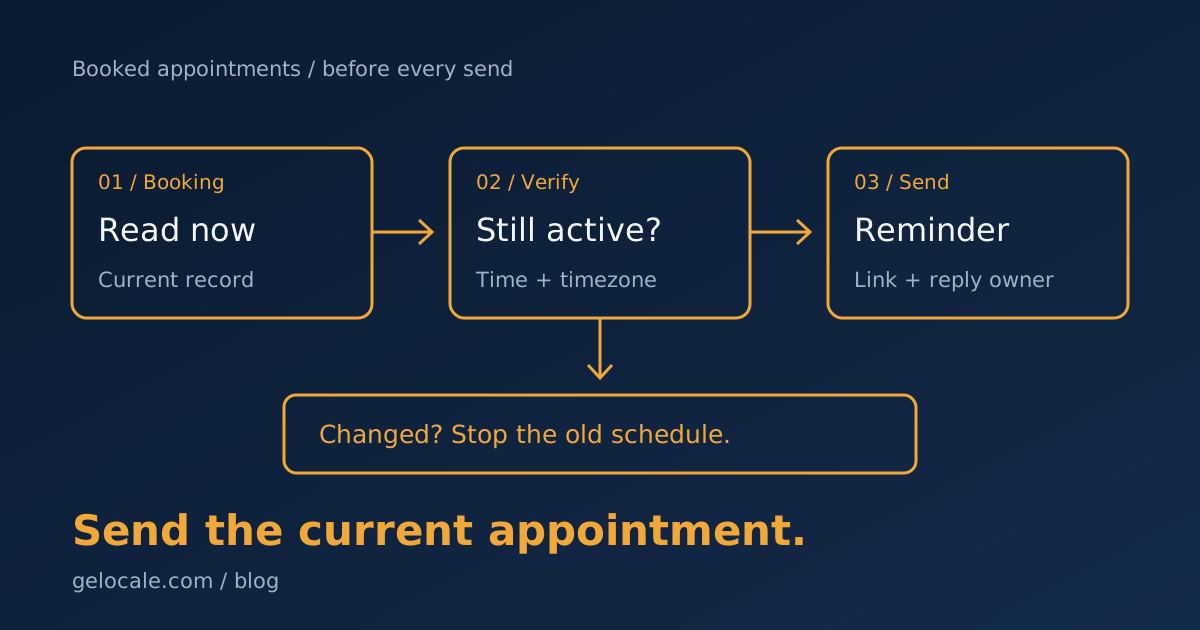
An appointment reminder email should tell your client when to attend, where to go, and how to change the booking. Keep those details current.
Use the 3 templates below for booked appointments. Replace the brackets with confirmed information and remove any line your service does not need.
These messages support an agreed meeting. They do not replace the booking confirmation or chase someone who has not booked.
3 appointment reminder email templates
Check the current appointment before each send. Confirm its status, start time, timezone, location, recipient, and assigned host.
1. A day-before reminder for an online appointment
Use this when your client needs time to prepare or change the booking. A day before is a starting point, not a proven best time.
Subject: Your [appointment name] on [day, date]
Hi [Name],
Your [appointment name] is booked for [day, date] at [time and timezone].
Join here: [meeting link]
Please have [necessary item] ready for the call.
To change or cancel your booking, use [manage booking link] or reply to this email.
Best,
[Host name]
[Business name and contact details]
Name only the preparation needed for this appointment. Do not turn the reminder into another intake form.
Test the meeting link as a guest. A link that works for the organizer might still ask your client for permission.
2. A short same-day reminder
Use this only if another reminder is useful for your service. Avoid sending it immediately after a confirmation or day-before message.
Subject: Your [appointment name] today at [time and timezone]
Hi [Name],
Your [appointment name] starts today, [date], at [time and timezone].
Join here: [meeting link]
If you cannot attend, use [manage booking link] or reply so we can arrange the next step.
Best,
[Host name]
[Business name and contact details]
Keep the date even when using “today.” Check that “today” matches the recipient's local date before sending across timezones.
For international bookings, use the full day and date instead of “today” if your system cannot confirm that match.
3. An in-person appointment reminder
Use this when directions or arrival instructions matter more than a meeting link.
Subject: Your visit to [business name] on [day, date]
Hi [Name],
Your appointment is booked for [day, date] at [time and timezone].
Address: [full address]
Directions: [map link]
On arrival, [necessary arrival instruction].
To change or cancel your booking, use [manage booking link] or contact [monitored contact channel].
Best,
[Host name]
[Business name and contact details]
Include parking, entry, or accessibility details only when accurate and relevant. Do not invent an arrival requirement your team cannot support.
Sensitive services need tighter content rules. Keep personal case details out of subject lines and use approved channels for confidential preparation.
Make the date and timezone unambiguous
Avoid numeric dates such as 04/05. Write the month so US and Australian clients read the same date.
Store the appointment's start instant and named timezone. Use the recorded client timezone when supported, rather than guessing from their email address.
For example, Friday, October 16 at 10:00 AM Australia/Sydney (AEDT) identifies both the date and the timezone.
Calculate the displayed offset for the appointment date. A fixed conversion may be wrong when daylight saving changes.
Check the calendar invitation, booking page, and reminder for agreement. If you show both host and client times, label them clearly.
Use the appointment's current data when sending. Copying the original confirmation into a delayed email risks repeating an old time or location.
Choose timing from the booking window
Start with the fewest reminders that serve a clear purpose. A preparation-heavy appointment may need notice sooner than a brief online call.
Treat the following as workflow examples, not attendance benchmarks:
| Booking situation | Example reminder rule |
|---|---|
| Booked several days ahead | Consider one day-before reminder |
| Booked on the same day | Skip any reminder whose scheduled time has passed |
| Needs forms or equipment | Send preparation instructions early enough to complete them |
| Recently rescheduled | Stop old reminders and calculate a new schedule |
Define a minimum gap between confirmation and reminder. If the booking arrives inside that gap, skip the reminder instead of sending messages together.
Do not use an immediate catch-up send for every missed reminder. A late booking needs a deliberate rule.
Stop the old schedule when the appointment changes
Tie each reminder to a booking identifier and its current version. A contact email alone cannot distinguish two appointments.
Before sending, check whether the booking is active and whether the stored time still matches. Skip expired or already-sent reminder slots.
Cancellation stops all remaining reminders for that appointment. Rescheduling invalidates the old schedule and creates reminders for the new time.
A reply needs a person to review it. “I cannot make this time” should pause routine messages until the owner resolves the booking.
Do not treat every reply as cancellation. A question about directions still needs an answer without deleting the appointment.
Name the person who watches the reply channel and delivery failures. Include a backup when the appointment host is unavailable.
If your platform cannot check these events reliably, create a manual send task. A checked reminder is preferable to an incorrect automatic message.
Check what your booking platform supports
Your platform may supply its own reminder emails. Inspect those settings before adding a second sending tool.
Google Calendar's appointment schedule guide states its built-in reminder text cannot be edited. Some appointment features also require an eligible subscription.
These templates therefore do not promise a direct replacement inside Google Calendar. Use an appropriate sending workflow if you need custom text.
Check who owns reminder sending across your calendar, CRM, and email tool. Disable duplicate paths only after confirming which one will remain active.
The CRM data cleanup guide explains how to check the records an automation will read before enabling sends.
Keep reminders separate from promotions
Focus on the existing appointment. Adding a sales offer changes the message's purpose and may change the requirements that apply.
The FTC's CAN-SPAM guide explains how the primary purpose affects US email rules. An existing business relationship alone does not make every message transactional.
Australia's ACMA guidance explains consent, identification, and unsubscribe requirements for marketing messages. Check the applicable rules before adding promotional content.
Use the correct sender identity and a monitored contact channel. The templates provide message copy, not a complete compliance setup.
Test changes, not only successful bookings
This test scenario is fictional. A consulting call moves from Friday morning to Monday afternoon after the first reminder was scheduled.
The old reminder should not send. The next email should show Monday's current time, timezone, host, and meeting link.
Also test a cancellation, a booking made shortly before the start, a duplicate event, and a reply requesting another time.
For each case, write the expected send or stop before running it. Review the recipient's message alongside the current calendar record.
Track attended appointments, timely reschedules, cancellations, failed deliveries, and wrong-time or duplicate sends. A sent-message count does not measure attendance.
Use comparable appointment types and booking windows when reviewing results. Reminder timing alone does not explain every missed meeting.
For prospects still reviewing an offer, use the separate proposal follow-up templates.
If reminders keep using stale details, bring your booking flow to a Growth Systems Review. We can review the record, stop events, and reply ownership.